Zwift setup has gotten overwhelming with all the sensor pairing and calibration steps flying around. As someone who’s helped dozens of cyclists get their indoor setups working properly, I learned everything there is to know about what actually matters versus what wastes your time. Today, I will share it all with you.

That’s what makes a proper Zwift setup endearing to us indoor riders — when everything works, winter training becomes genuinely enjoyable.
Equipment You Actually Need
Probably should have led with this section, honestly — the gear list determines whether this works smoothly or becomes a frustrating mess.
Bike: Road bike works best. Mountain bike works fine.
Trainer: Smart trainers control resistance automatically and provide power data. Classic trainers with speed sensors work but feel less immersive.
Device: Apple TV runs Zwift smoothly and costs less than dedicating a laptop. iPads, phones, computers all work.
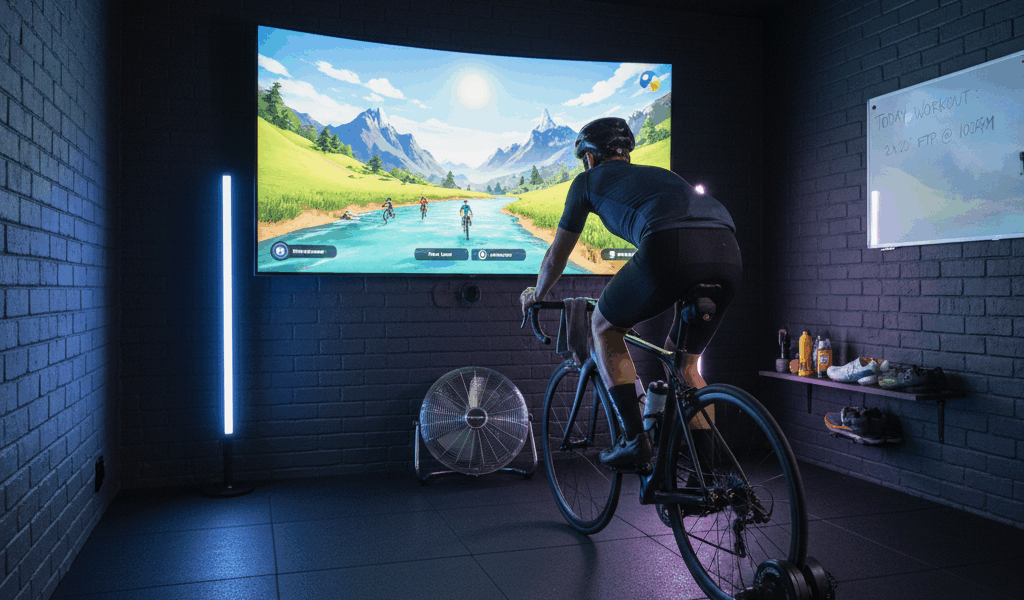
Fan: Non-negotiable. Indoor cycling generates tremendous heat. Position a strong fan directly in front of you.
Trainer Setup
But how hard is the physical setup? In essence, straightforward if you follow the order.
Secure your bike on the trainer. For direct-drive smart trainers, connect your bike directly to the trainer’s cassette. For wheel-on trainers, position the rear tire on the roller and tighten snugly.
Level the bike. Most trainers include adjustable legs or front wheel blocks. Riding tilted forward or backward gets uncomfortable quickly.
Connecting Everything
I’m apparently in the camp that prefers Bluetooth over ANT+ for most setups. Frustrated by ANT+ dongles and interference issues, I switched to Bluetooth pairing and immediately had fewer connection drops.
Power on your trainer and any sensors before opening Zwift. The app finds devices during the pairing screen. Pair your trainer as both power source and controllable trainer. Add heart rate monitor and cadence sensor if you have them.
Calibration Matters
Smart trainers need calibration for accurate power data. Most companion apps handle this automatically — do a spin-down calibration every few weeks or when power numbers seem off.
For wheel-on trainers, tire pressure affects accuracy significantly. Maintain consistent pressure and recalibrate after tire changes.
Environment Setup
Fan positioning wins or loses the experience. Direct airflow at your chest. Consider multiple fans for longer sessions.
Mount your device at eye level to avoid neck strain. Handlebar mounts for tablets or laptop stands work well. TV connection via HDMI improves immersion dramatically.
Actually Using Zwift
The interface shows your avatar, speed, power, heart rate, and the virtual world. Join events from the companion app. Structured workouts follow interval prescriptions automatically. Group rides keep you motivated.
Explore different worlds — Watopia is the most popular, but variety keeps things interesting.
Troubleshooting
Connectivity drops: Check Bluetooth interference from other devices. Move closer to your device. Restart trainer.
Inaccurate power: Recalibrate trainer. Check tire pressure for wheel-on setups.
Lag or crashes: Update software. Restart device. Apple TV handles Zwift better than older phones.
Making the Call
Zwift transforms indoor training from boring necessity to engaging workout. Invest in a strong fan. Get trainer calibration right. Position your screen at eye level. Once dialed in, winter miles become almost enjoyable.